Step-by-step guide
Want to quickly and beautifully arrange multiple photos into one stylish frame? In the MULI app you can do it in 1 minute — without quality loss, without complex editors, and currently completely free. We've prepared a short guide on how to make a photo collage in MULI and save it in a format ready for social media.
Why MULI is the perfect solution for creating photo collages
- 22 stylish templates — minimalist and atmospheric
- Support for 9:16 and 4:5 formats — for Stories and posts
- No quality loss — result in 4K
- Fast and simple interface
- Available for free on iPhone (App Store)
Step-by-step guide: how to create a photo collage in MULI
Step 1: Install MULI
Download the MULI app from the App Store on your iPhone:
👉 Go to the App Store

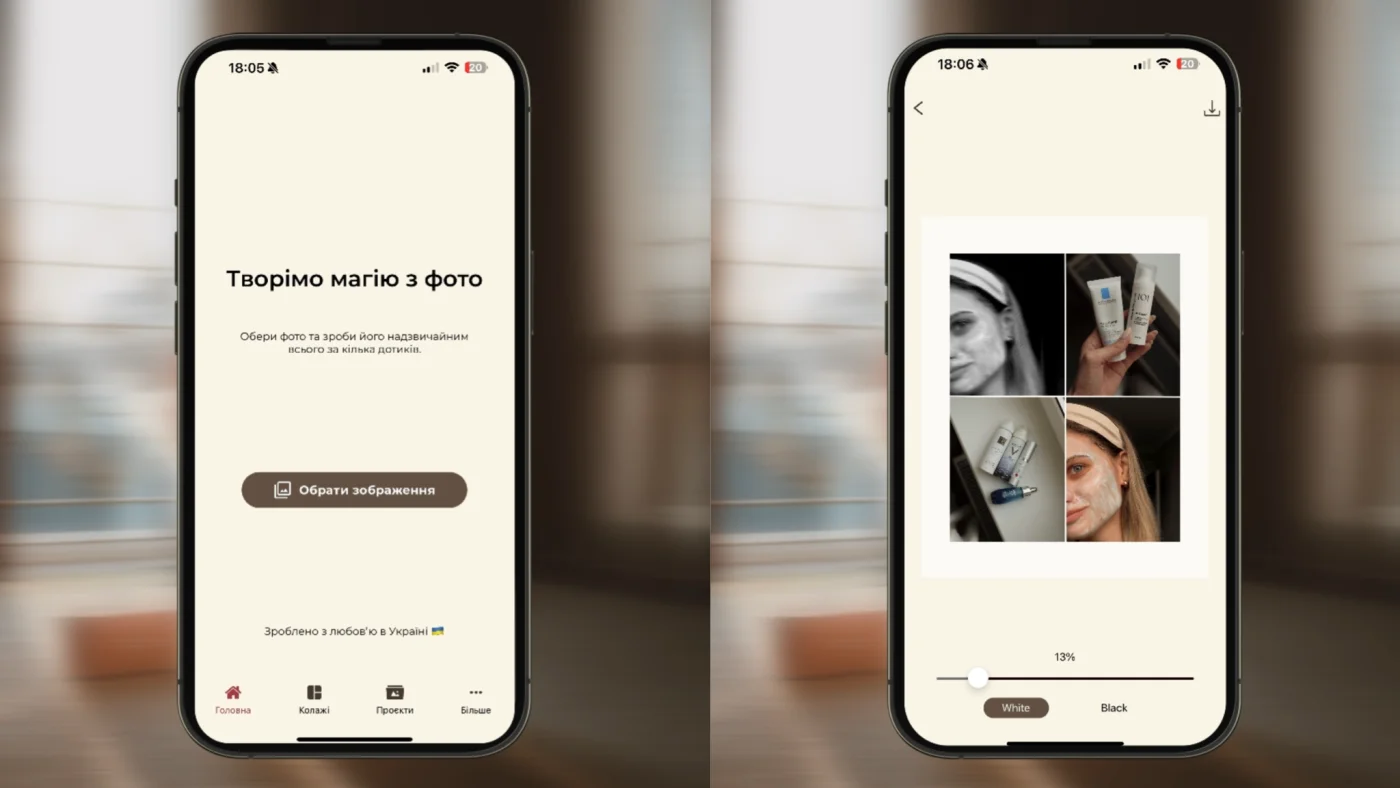
Step 2: Open MULI and tap "Collages"
On the main screen at the bottom panel you'll see the "Collages" section — tap it.

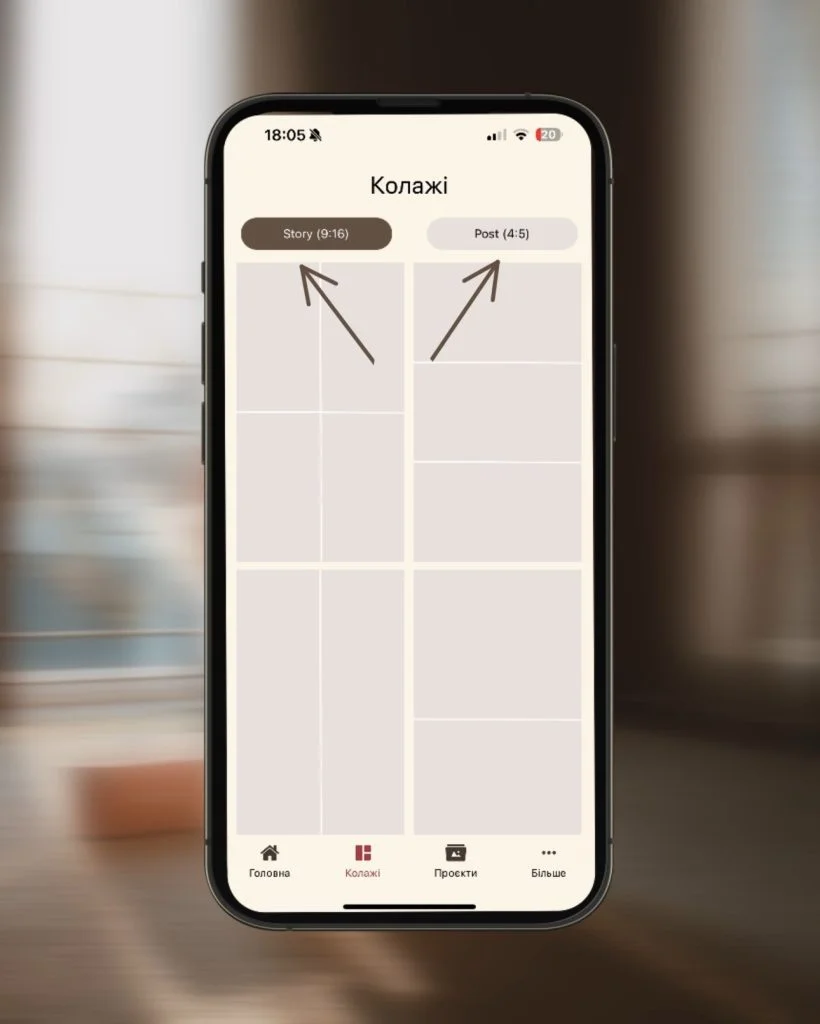
Step 3: Choose a format
Select the aspect ratio for your collage:
- 9:16 — for Instagram Stories or Reels
- 4:5 — for Instagram feed posts
Step 4: Choose a template
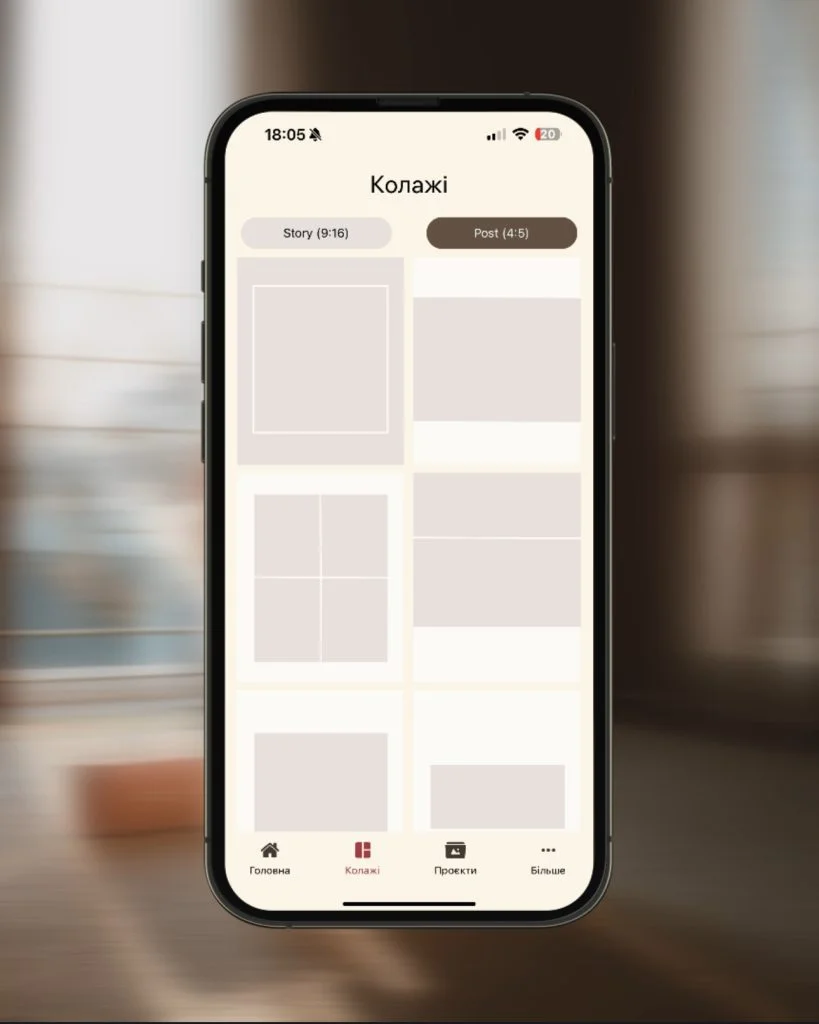
MULI has 22 trending templates for every taste — simple compositions and more creative options. Just tap the one you like. Add 2–8 photos to the selected template. Photos can be swapped.
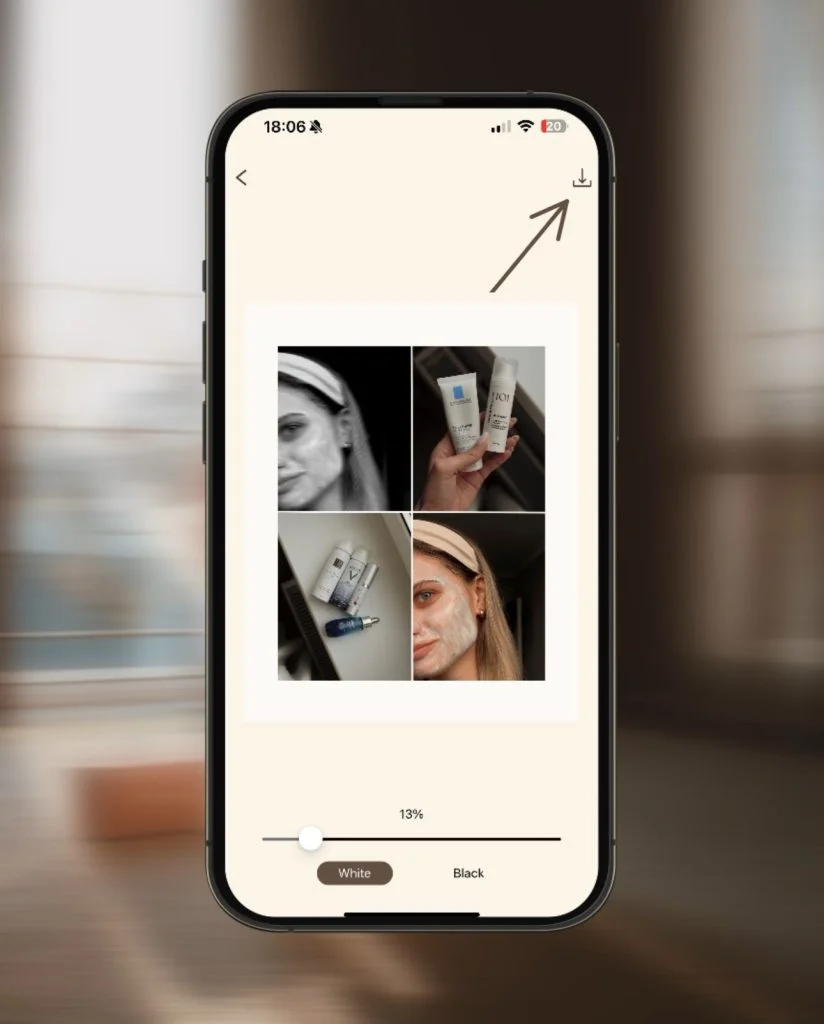
Step 5: Save your collage in 4K
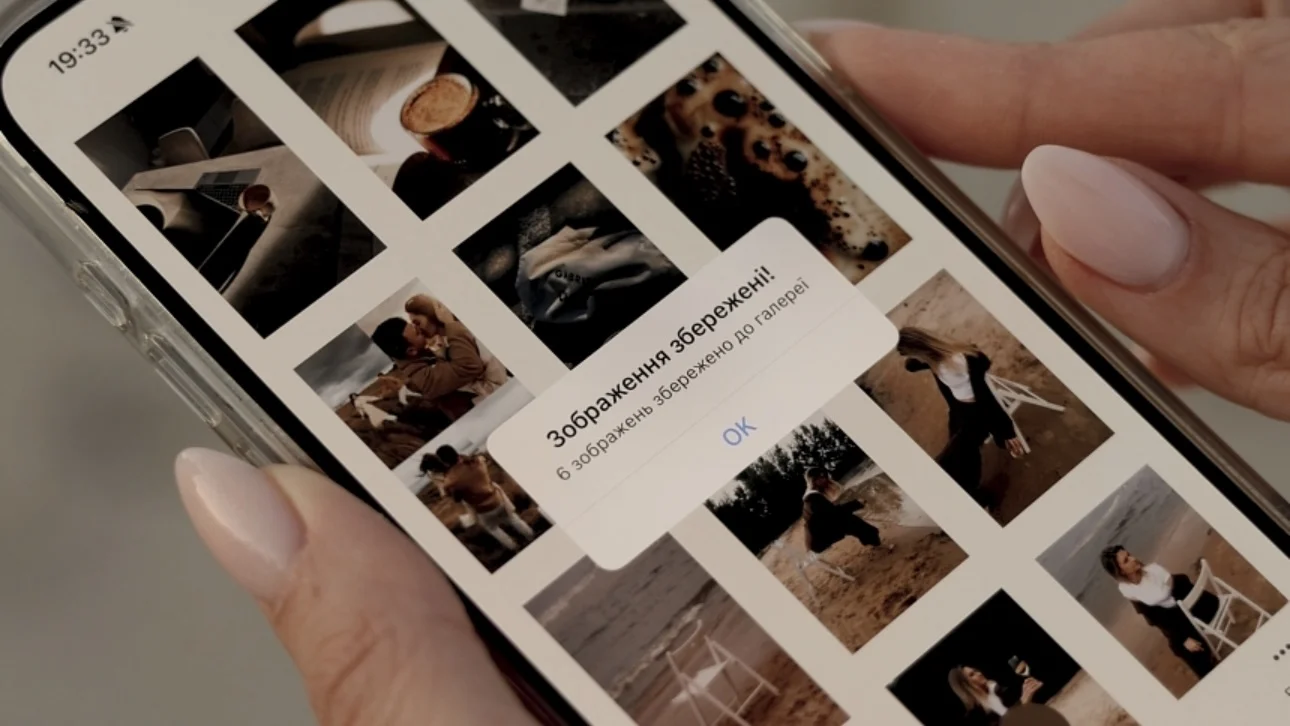
Find the "Save" button in the upper right corner — your collage will immediately appear in your gallery.
Tips: How to Make the Perfect Collage
- Choose photos in the same color palette — it looks professional
- Leave empty space in the frame — don't overload the composition
- When publishing, add a short caption: event name, date, or city — it adds "story"
FAQ
How many photos can I use in one collage?
From 2 to 8, depending on the template.
Does MULI work offline?
Yes, after installation all features are available without internet.
Can I change the position of photos?
Yes, just tap the photo that doesn't fit and choose another from your gallery.
What quality will the saved collage be?
4K — perfect for social media, printing, preserving memories.
Ready to create your first collage?